You can bring your existing notes into nocal instead of retyping them. The importer reads Markdown, plain text, a .zip of Markdown files, and Evernote .enex exports, and turns each one into a note in your list.
Importing is available in the desktop app (Mac and Windows).
What you can import
| Format | File type | Notes |
|---|---|---|
| Markdown | .md | Headings, lists, checklists, tables, and links come across |
| Plain text | .txt | Each file becomes one note |
| Markdown archive | .zip | A zip of .md files, imported as a batch |
| Evernote | .enex | Your Evernote export, one file for many notes |
Import files
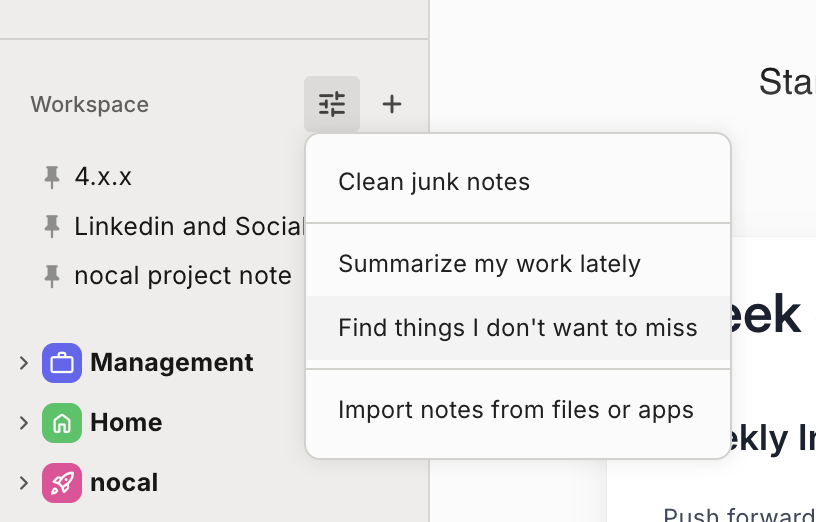
- In the notes sidebar, open the actions menu at the top of your Workspace.
- Choose Import notes from files or apps, then pick the files you want to bring in.
- nocal reads each file and adds the notes to your list.
You can select several files at once. Loose Markdown files are bundled together, and each .zip and each .enex is read on its own.
Drag files in
You can also drag files straight from your computer onto the notes sidebar. Drop them where you want them and nocal imports them in place, the same way you would drag a note to move it.
Import from Evernote
Evernote exports your notebooks as a single .enex file. Export from Evernote first, then import that file into nocal.
The importer brings your text, headings, lists, checklists, and tables. Some Evernote content has no place in a nocal note, so the importer leaves it out and tells you what it skipped:
- Images, PDFs, and other attachments become a short placeholder line where they were.
- Encrypted blocks become a placeholder, since nocal cannot read them.
- Evernote tags, reminders, and web-clip styling do not carry over.
After an import, nocal shows a short report of anything it dropped, so you know which notes to check.
For a fuller comparison, see Evernote alternatives.
Note size
A single note can hold up to 100,000 characters. That is room for a very long note. If one imported note is larger than that, split it before you import.
Export your notes
You can take your notes back out whenever you want. Go to Settings > Account and export all of your notes as Markdown files, one .md per note. Your notes are yours, and nothing locks them in.