Setting Up Zoom Integration
Nocal makes it easy to automatically add Zoom meetings to your calendar events. Follow these simple steps to get started:
1. Enable Zoom Integration
Navigate to Preferences > Video Conferencing in the app. You'll see Zoom as an available option.
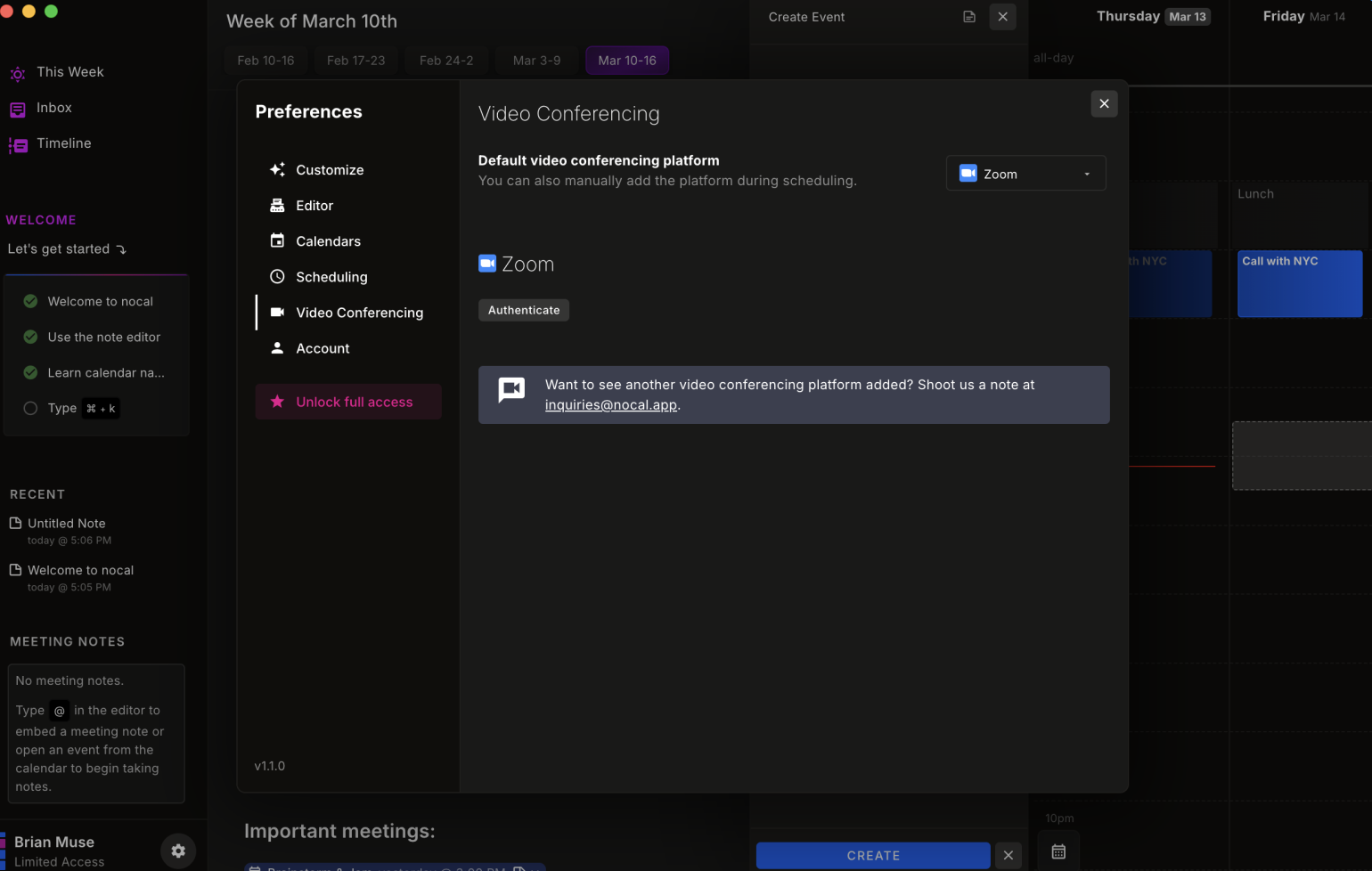
2. Authenticate with Zoom
Click the "Authenticate" button to connect your Zoom account. This will:
- Open Zoom's secure login page
- Ask for your permission to create meetings
- Securely store your authentication
3. Start Creating Zoom Meetings
Once authenticated, Nocal will automatically:
- Add Zoom meetings to new calendar events by default
- Include Zoom meeting links in event details
- Sync meeting updates between Zoom and your calendar
You can always manually choose a different video conferencing platform during event creation.
Need Help?
If you encounter any issues during setup, please contact us at [email protected]