Overview
Use this page to manage work, personal, family, and shared Google calendars in one nocal workspace.
Limits: You can organize calendars into up to 3 groups.
Per-group limit: Each group supports up to 5 calendars.
Subscription note: Multi-calendar features (additional accounts and secondary calendar management) require a Full Access subscription.
Multi-Account Support
Connect and maintain secondary Google accounts so multiple Google calendars stay synced in nocal.
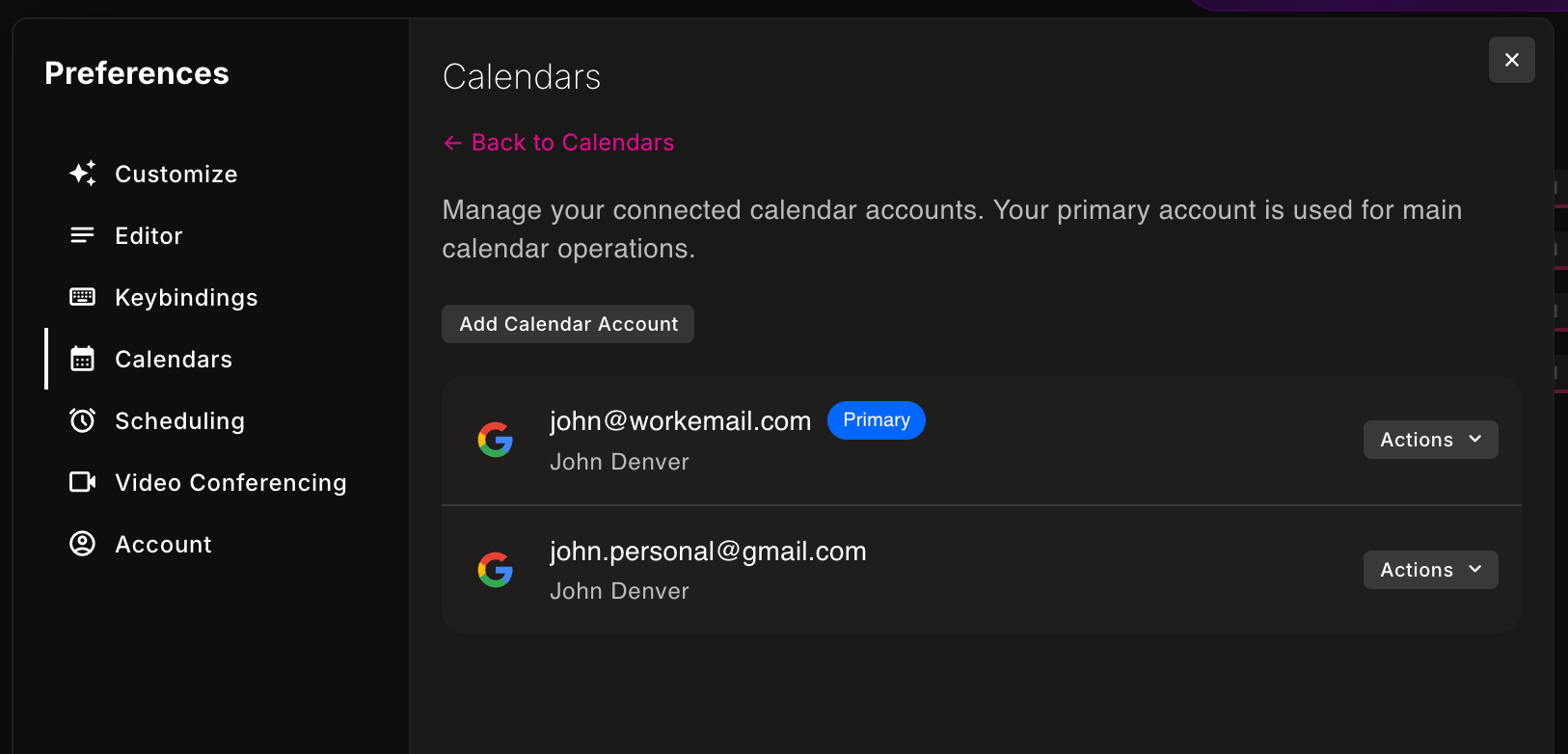
- Open nocal Preferences and go to calendar settings.
- Choose
Connect Calendar Accounts. - Click
Add Calendar Accountand complete Google auth. - Confirm the account appears in the connected accounts list.
- Use
Reconnectwhen scopes are missing or tokens are stale. - Use
Remove Accountfor non-primary accounts you no longer want synced. - If calendars are missing after connect, reconnect and refresh calendar settings.
Calendar Groups
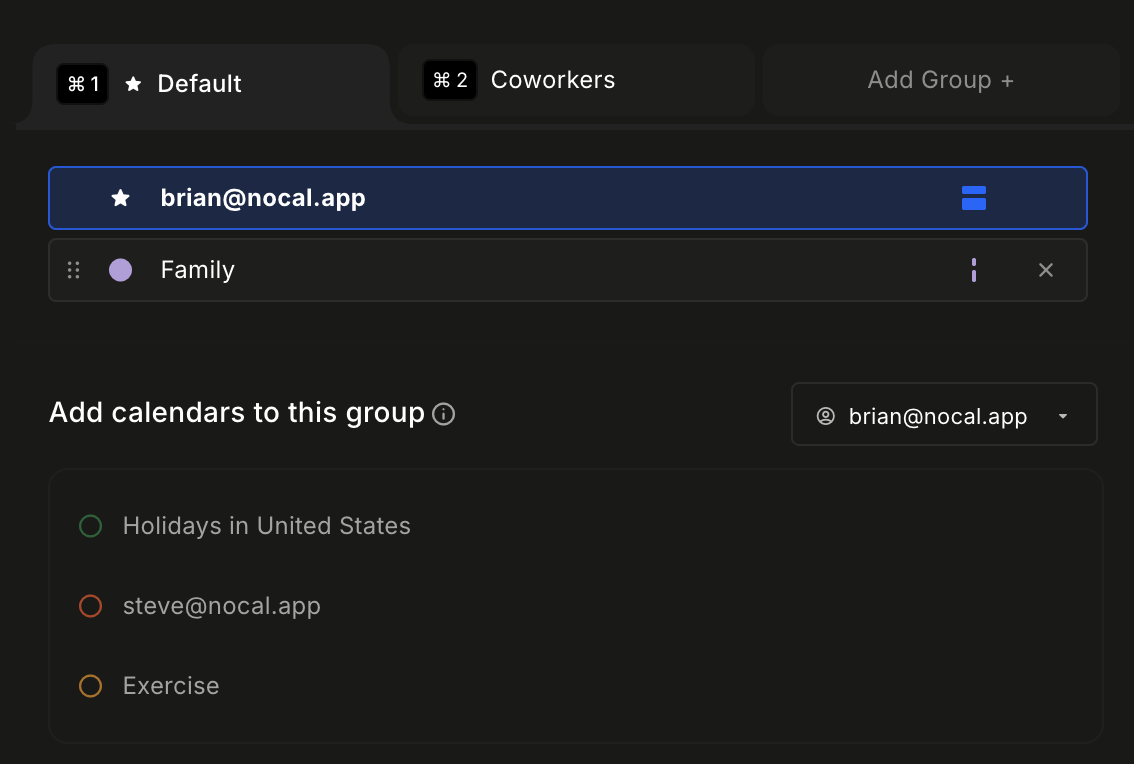
Organize multiple calendars by context and control default event placement via ordering.
- Create and switch between up to 3 groups.
- Add calendars to each group (up to 5 calendars per group).
- Drag calendars to reorder by priority inside a group.
- The top calendar in a group is the default calendar for new events in that group.
Calendar Modes
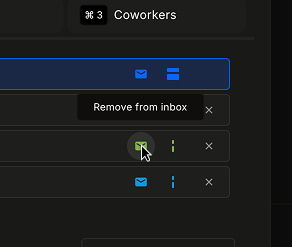
Control how each calendar contributes to inbox flow and timeline density.
- Inbox mode: include or exclude invites from a calendar in unified inbox.
- Visibility mode: keep calendars always expanded or in minimized/background mode.
- Secondary calendars are minimized by default to reduce visual noise.
- If a group feels overloaded, minimize non-critical calendars first.
Related Setup
Want AI agents to read/write your notes during calendar workflows? Connect agents with nocal .