Best Productivity Apps of 2026: An Honest Comparison
An honest comparison of the best productivity and calendar management apps in 2026, including Apple Notes, nocal, ClickUp, Monday.com, Notion, Morgen, and Amie.
There is no single best productivity app. There's only the best one for how you work.
Some people organize their entire day around their calendar. Meetings, time blocks, and the gaps between them set the pace. They want a tool that starts with their schedule and connects tasks and notes to it.
Others coordinate teams across projects. They need boards, timelines, dependencies, and reporting. A calendar app won't cut it.
Some are document-first thinkers who build wikis, maintain databases, and want a flexible workspace.
And plenty of people don't need any of that. They want clean, simple note-taking and a calendar that works. Not everyone needs a database or a Kanban board. Sometimes the built-in tools on your phone are the right answer.
This post covers seven productivity tools, starting with the simplest and working up. Skip to the ones that match how you think about your day.
Apple Notes (and Google Keep)
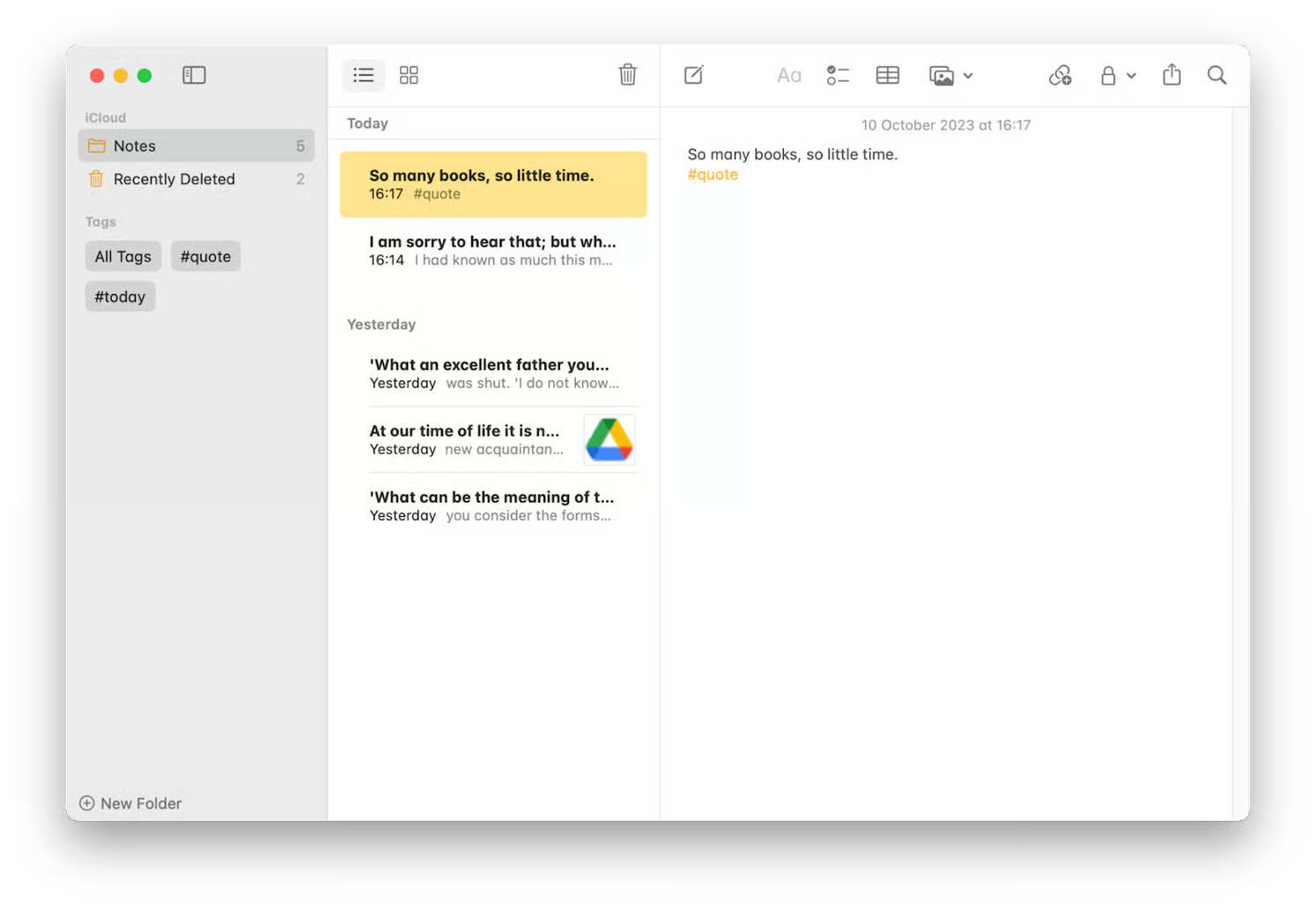
Best for: People who want quick, simple note-taking without learning a new system.
This might seem like a strange inclusion in a productivity app roundup, but it's the most honest one. Apple Notes (and Google Keep, if you're on Android) handles the note-taking needs of most people without any setup, any subscription, or any learning curve.
Notes syncs across your devices automatically. It supports checklists, folders, tags, images, and basic formatting. For quick capture, meeting notes, grocery lists, and personal organization, it does the job. It's also completely free and already installed.
The reason to mention it here: a lot of people adopt Notion or another tool because they think they should, then end up with an elaborate system they don't maintain. If your notes are short, unstructured, and personal, Apple Notes or Keep is a perfectly good choice. You don't need relational databases to remember what to buy at the store.
Where it falls short is anything collaborative, structured, or connected to your schedule. There's no calendar integration, no task management, no AI, and no way to build workflows around your notes. When you hit those limits, that's when the tools below start making sense.
| Strengths | Weaknesses |
|---|---|
| Zero setup, free, syncs across Apple devices | No calendar integration |
| Fast capture with checklists, folders, tags | No task management or scheduling |
| No learning curve | No collaboration features |
| Already on your phone and laptop | No AI features; no structured data or databases |
nocal
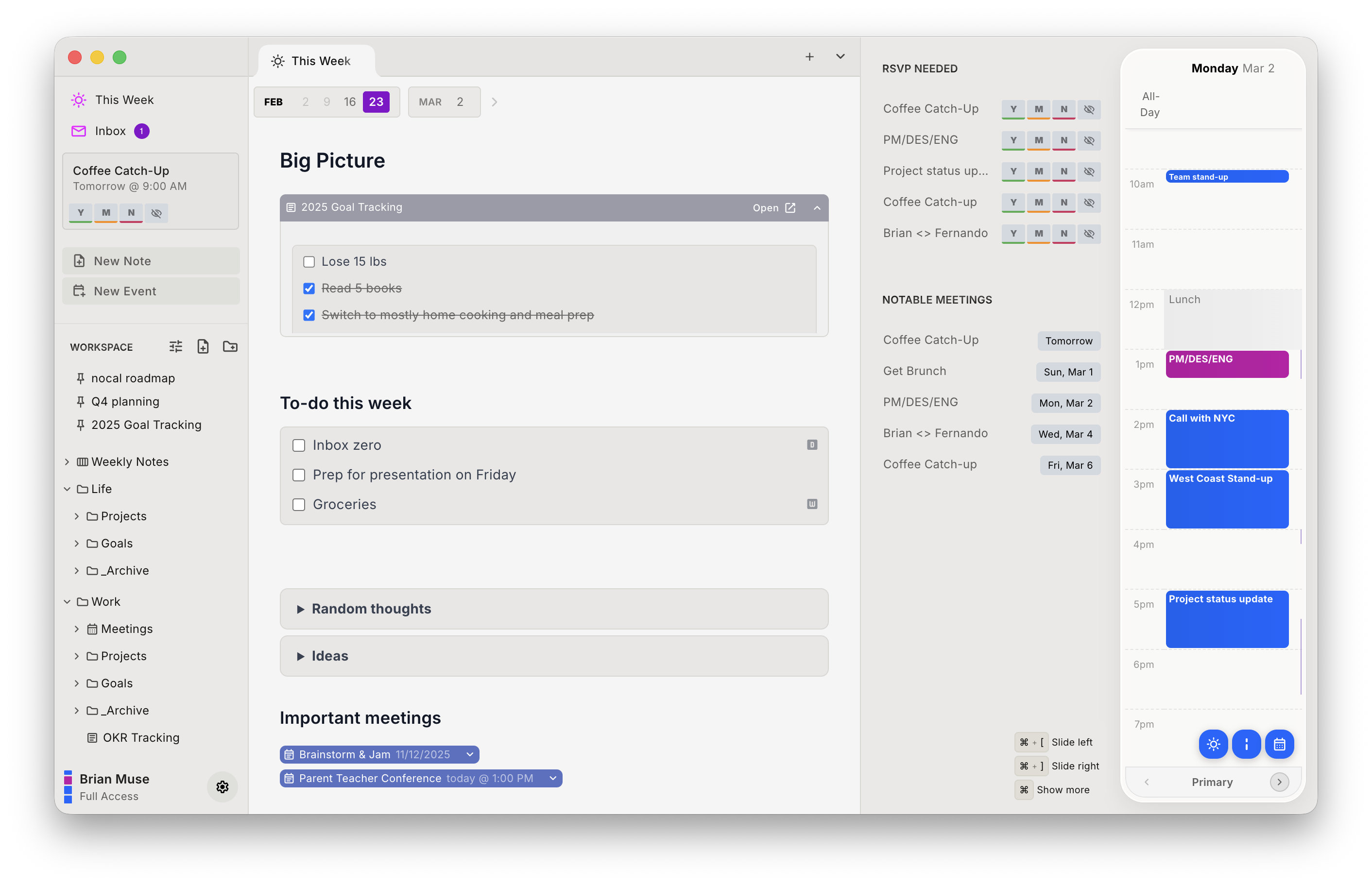
Best for: People whose day revolves around their calendar and who want AI and their weekly workflow in one place.
nocal is built around a weekly scratchpad with block-based note-taking. Each week becomes its own workspace where you embed calendar events, notes, tasks, and rich components directly into your pages. Unfinished work rolls forward into the next week automatically, so nothing falls through the cracks. It turns your week into a lightweight project board without requiring you to maintain one.
nocal's AI helps you start each week with the right context: what carried over, what's coming up, and what needs attention. Its MCP server also lets you plug nocal directly into your existing AI tools, so your calendar and notes become accessible to whatever else you're building with.
You connect your calendar accounts (Google, Outlook, or both) and start writing. There's no setup wizard or configuration phase. nocal is opinionated about how this should work. If you need Gantt charts, team boards, or heavy customization, the project management tools below are a better fit.
| Strengths | Weaknesses |
|---|---|
| Calendar-first: tasks, meetings, and notes in a single unified view | Opinionated design with less customization than Notion or ClickUp |
| AI that gives you weekly context; MCP server integrates with your AI toolchain | No project management features like Gantt charts or team boards |
| Zero setup friction: connect your calendars and go | Smaller integration ecosystem than mature platforms |
| Fast, lightweight, clean note-taking | Less suited for teams needing shared project views |
ClickUp
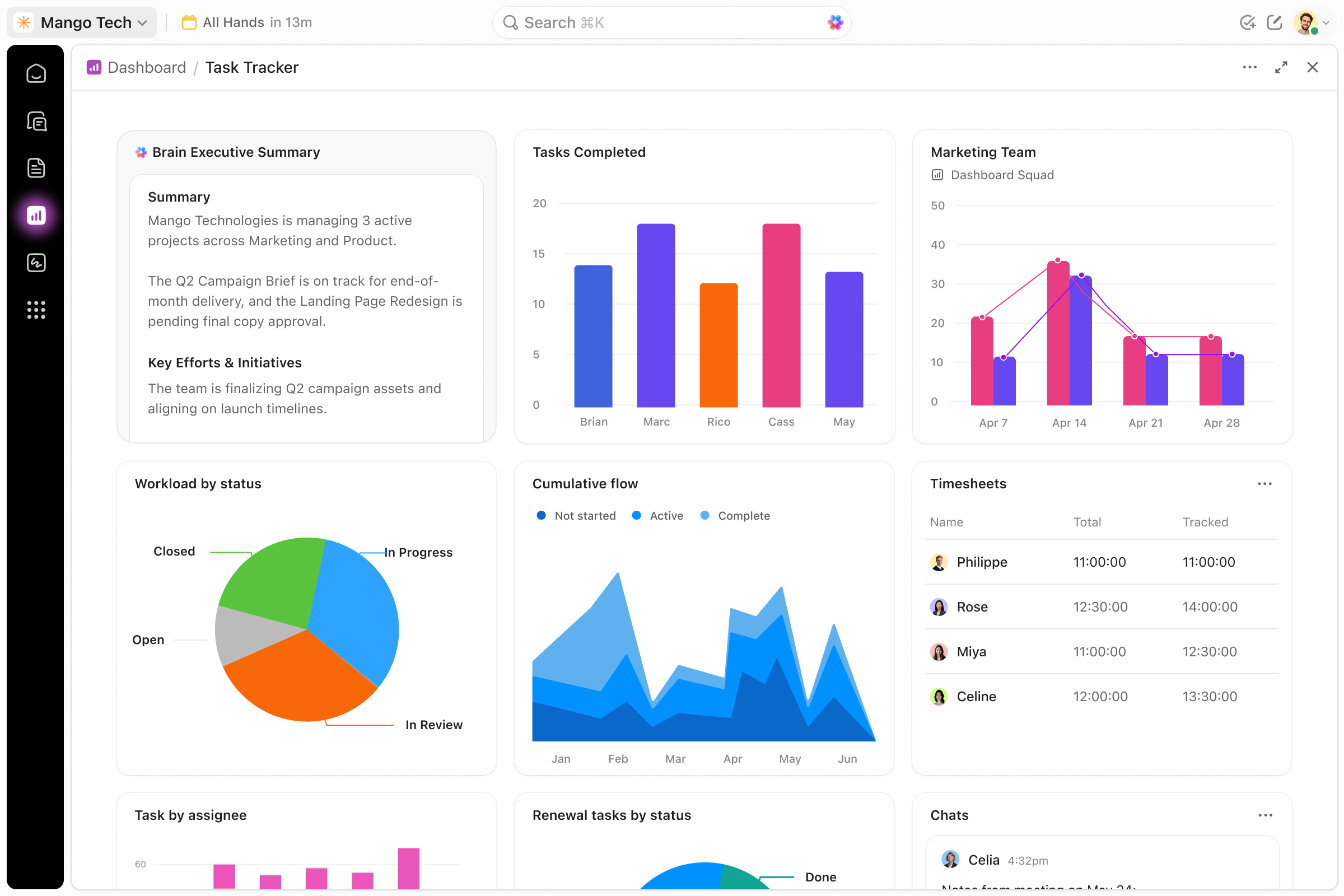
Best for: Teams running complex, multi-stage projects who want everything in one platform.
ClickUp packs project management, docs, whiteboards, time tracking, and goals into a single product. If a workflow exists, ClickUp probably has a feature for it.
The cost is complexity. New users will spend weeks configuring views, fields, and automations before things click. The interface is dense, and the mobile app lags behind the desktop experience. If you're a solo freelancer tracking a few tasks, ClickUp is overkill.
For teams with sprints, dependencies, and cross-functional projects, it's one of the few tools that can replace multiple apps. The free tier is generous enough to evaluate whether it fits.
| Strengths | Weaknesses |
|---|---|
| Feature-rich: project management, docs, goals, time tracking in one place | Steep learning curve; interface takes weeks to configure well |
| Customizable views: list, board, Gantt, calendar, table | Performance degrades with large workspaces and heavy customization |
| 1,000+ integrations | Mobile app lacks depth compared to desktop |
| Generous free tier | AI features feel bolted on, not native to the workflow |
Monday.com
Best for: Teams that want visual project management without the ClickUp learning curve.
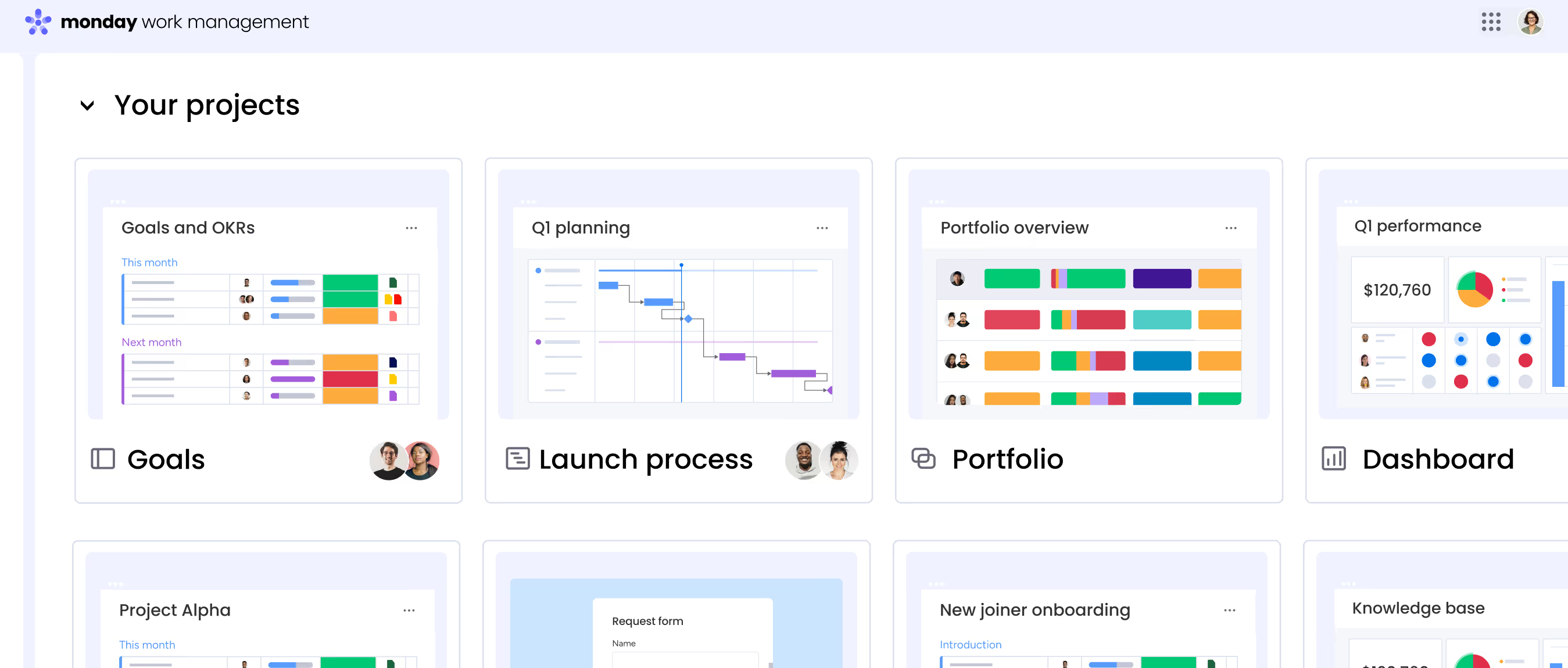
Monday.com sits between ClickUp's power and a simple task board. It's a real project management platform with boards, automations, dashboards, and integrations, but it's significantly easier to pick up. The visual interface makes sense to non-technical teams immediately, which is why marketing, operations, and creative departments tend to adopt it.
Boards are easy to scan. Automations use a "when/then" builder. Dashboards give you portfolio-level reporting without requiring deep configuration.
Like ClickUp, Monday.com is project-first. There's no meaningful connection to your personal calendar, and note-taking is basic. If your day is structured around your schedule rather than a project board, it's the wrong tool. For teams coordinating across departments, it balances power and usability well.
| Strengths | Weaknesses |
|---|---|
| Visual interface that non-technical teams can adopt quickly | No native calendar integration with your personal schedule |
| Intuitive "when/then" automation builder | Documentation and note-taking are basic compared to Notion |
| Strong portfolio-level dashboards and reporting | Pricing scales up fast as your team adds features |
| Good fit for marketing, ops, and creative teams | Less customizable than ClickUp for technical workflows |
Notion
Best for: Knowledge workers who need flexible databases, wikis, and structured documentation.
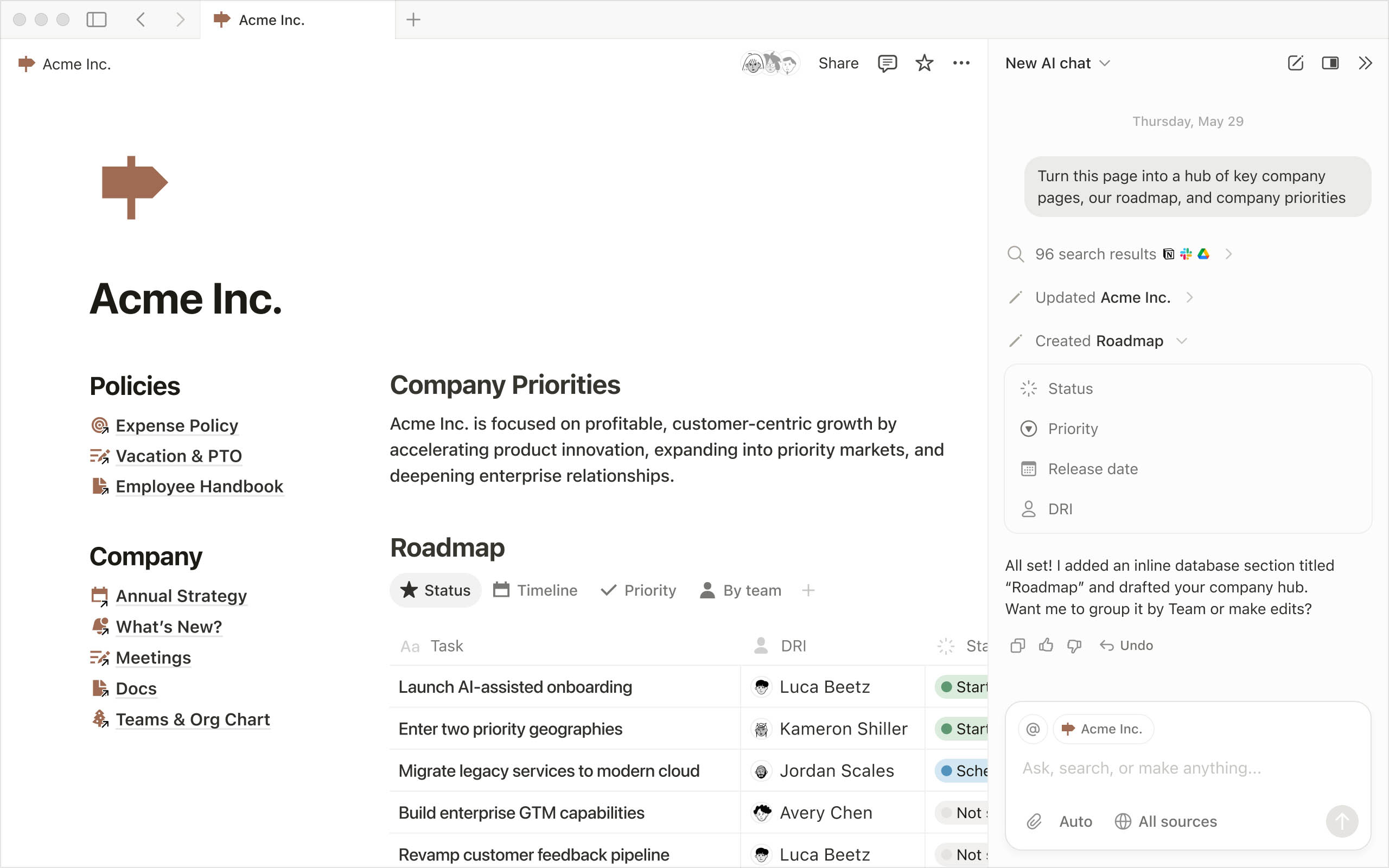
Notion's block-based editor and database model let you build anything from a to-do list to a company wiki. Thousands of community templates exist, and the AI features handle summarization and writing within documents.
You have to build your system before you can use it. Notion Calendar exists, but it's essentially a separate app rather than a native part of the Notion workspace. Your documents and your schedule still live in different places. The AI only understands your documents, not your time.
Not everyone needs this. If your notes are simple and personal, Apple Notes or Google Keep will do the job without asking you to architect a workspace. Notion pays off when you need structured information: project wikis, content calendars, CRM-style tracking, or knowledge bases. If that's not your use case, the setup cost isn't worth it.
| Strengths | Weaknesses |
|---|---|
| Extremely flexible: databases, wikis, docs, and task boards | Notion Calendar exists but feels like a separate app; schedule and docs are disconnected |
| Rich block-based editor with media support | Significant setup before it's useful (the blank canvas problem) |
| Large template library and active community | Sluggish with large databases and deeply nested pages |
| AI handles summarization and writing within docs | Overkill if you just need simple notes |
Morgen
Best for: People who want AI scheduling assistance on top of their existing calendar setup.
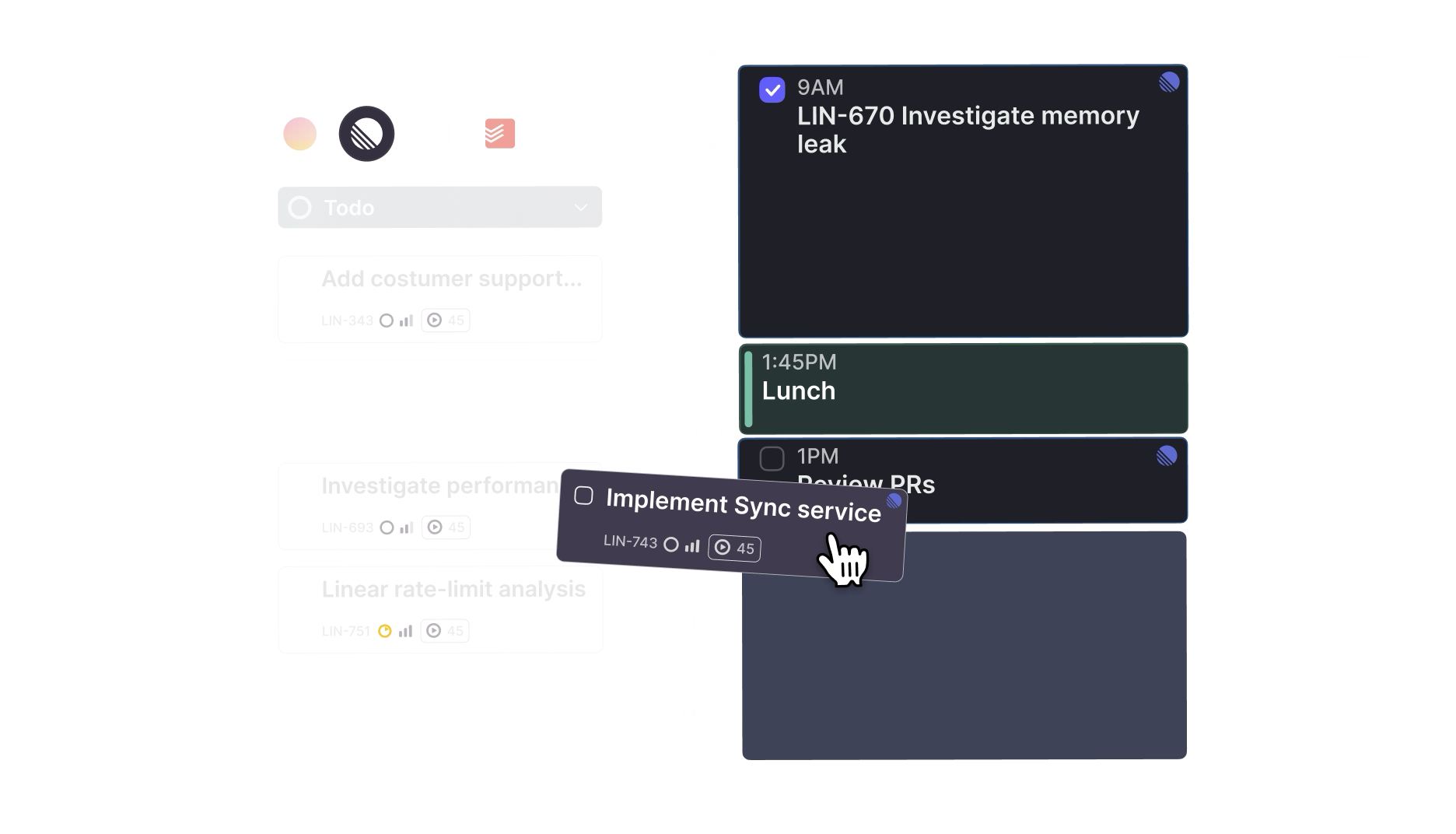
Morgen layers scheduling intelligence on top of whatever calendar you already use. It negotiates meeting times, finds optimal slots, and manages availability across multiple calendars.
If you spend too much time playing calendar Tetris (juggling requests, finding slots, coordinating across time zones), Morgen targets that problem specifically. It's not a notes app or a task manager. It's a scheduling tool.
The product is still maturing. Some AI features are inconsistent depending on calendar complexity, and the feature set is narrow. Note-taking and task management are minimal. For the specific problem it solves, it works well, and the team ships updates frequently.
| Strengths | Weaknesses |
|---|---|
| AI scheduling that negotiates meeting times and finds optimal slots | Still early-stage; some features feel unfinished |
| Clean, modern interface | Narrow feature set compared to mature tools |
| Multi-account calendar management | Limited task management beyond calendar events |
| Frequent updates and active development | Small community and fewer learning resources |
Amie
Best for: People who want a polished calendar and email client without the complexity of a full productivity suite.
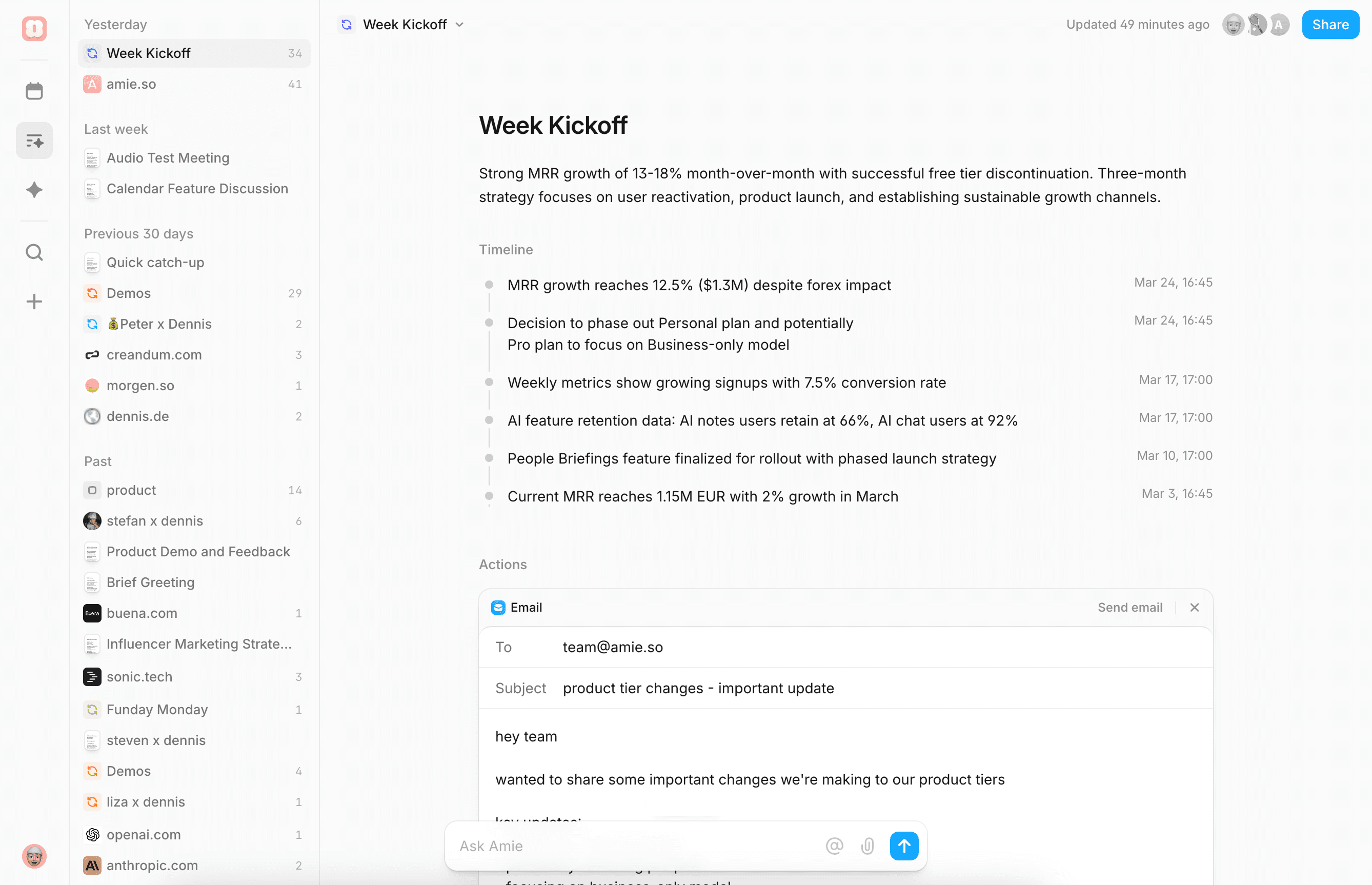
Amie merges your calendar and email into one interface with a level of design polish that most productivity tools don't attempt. Scheduling is drag-and-drop. Animations are smooth. It feels like a well-made consumer app rather than enterprise software.
If you've opened Google Calendar or Outlook and wished it looked and felt better, that's the gap Amie fills. It handles calendar and email. That's the scope. No project boards, no databases, no wiki features.
Task management is minimal, and the AI features are lighter than competitors. You'll need other tools alongside it for anything beyond scheduling and email. If those two things are the core of your day and you care about the experience, Amie is the best in its category.
| Strengths | Weaknesses |
|---|---|
| One of the best-designed calendar apps available | No task management: no boards, no project views, no dependencies |
| Calendar and email combined in one interface | AI features are lighter than competitors |
| Smooth UX with intuitive drag-and-drop scheduling | Not a full productivity suite; you'll need other tools alongside it |
| Fast and responsive with a native feel | Smaller user base means fewer integrations |
How to Choose
Pick based on what sits at the center of your workflow:
You just need notes. Your note-taking is personal and unstructured. Apple Notes or Google Keep is probably enough, and you can skip the rest of this list.
Your calendar runs your day. You want tasks and notes connected to your schedule, not separated into different apps. nocal gives you a weekly scratchpad where calendar events, notes, and tasks live together, with AI that keeps you oriented week to week. Morgen is better if you specifically need scheduling assistance and keep notes and tasks elsewhere.
You manage projects and teams. You need boards, timelines, and visibility into work across people. ClickUp has the most power and customization. Monday.com covers similar ground with less complexity and faster adoption for non-technical teams.
You think in documents and knowledge. You want wikis, databases, and structured notes. Notion is unmatched here. Make sure you need that structure before committing to the setup.
You want a great calendar and email client. Clean design, smooth scheduling, and nothing more. Amie does this better than anyone.
The tools gaining ground in 2026 are the ones that bring AI into the context where you actually work: your schedule, your documents, your existing data. That shift favors tools that are opinionated about their use case over tools that try to be everything.
 Download for Mac
 Download for Windows
 Google Play Store